4 Solutions to Delete Contacts from iPhone Individually and in Bulk
If you’ve wondered how you can delete contacts on your iPhone individually and in Bulk, this article will present you with 4 solutions to do so:
Solution 1: via Contacts
This solution will help you to delete contacts individually.
First, open the Phone icon on your iPhone and navigate to the Contacts section.
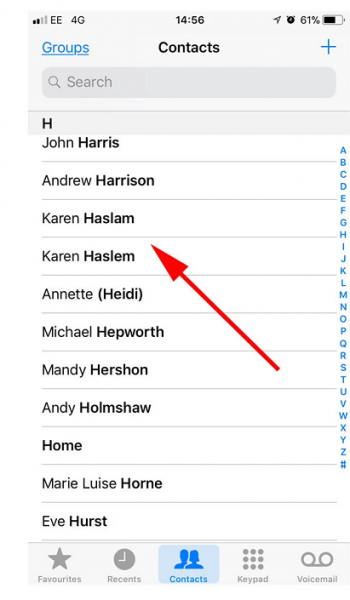
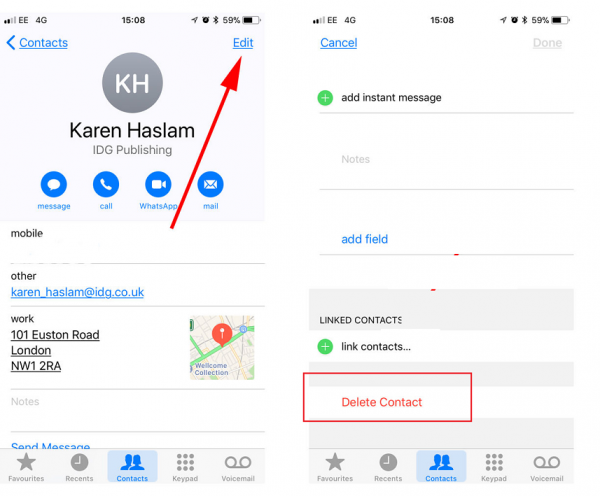
Now, tap the contact that you want to delete.
Click on the Edit option now.
Now, scroll down to the bottom of the page you are on and select the option Delete Contact.
Solution 2: via iCloud
This solution will help you delete contacts via iCloud.
First, navigate to the Settings icon and click on the iCloud option.
Now, turn the switch next to Contacts to off.
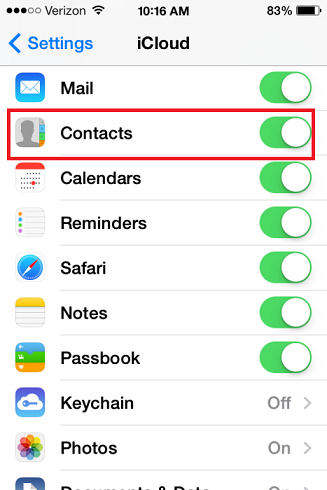
Finally, tap on Delete from My iPhone.
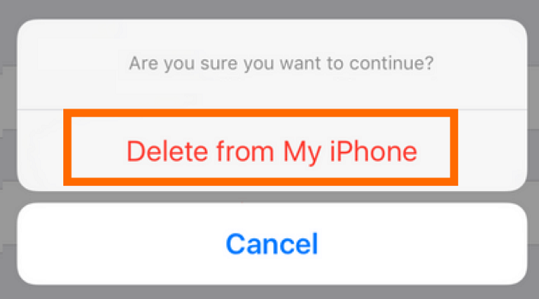
This solution will delete all your contacts from the iPhone.
Solution 3: from your Mac
This solution will help you mass delete contacts on iPhone on Mac.
Using the Contacts app on your Mac, you can delete contacts on your iPhone.
The only prerequisite is that you log in through the same username and password on your Mac as you did on your iPhone.
First, open Systems Preferences and select iCloud.
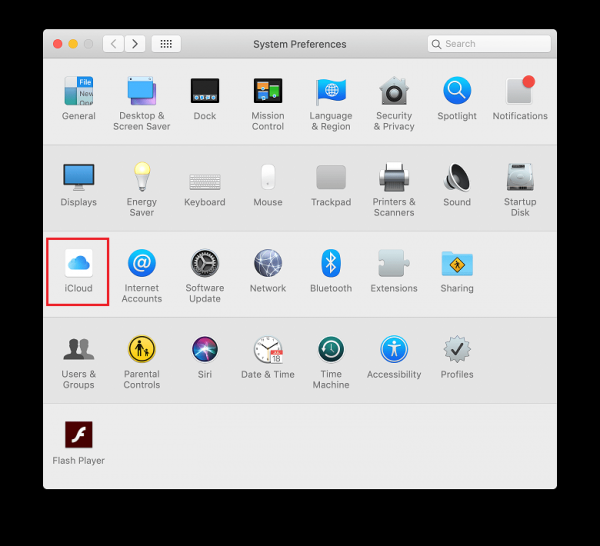
Now, you can sign-in and check Contacts so they synchronize across all your devices.
Next, navigate to Applications on your Mac and open the Contacts App.
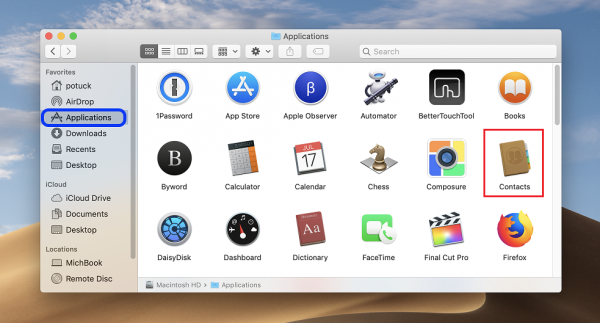
Now, with all contacts in your view, press and hold the command button on your mac while selecting the contacts that you want to delete.
Press the “Delete” key, and confirm that you want to delete the selected contact (or contacts).
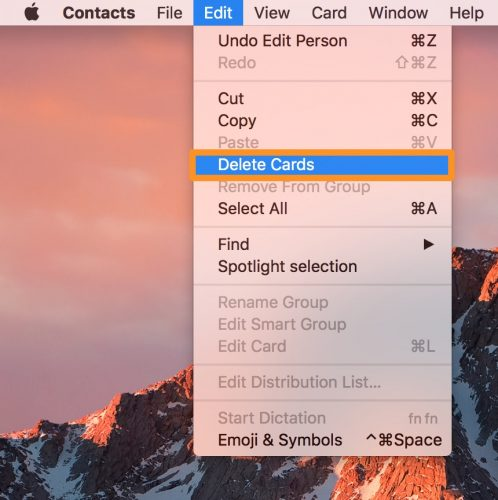
The changes should be updated on your iPhone as well.
Solution 4: from your PC
This solution will teach you how to mass delete contacts on iPhone on PC.
First, sign in to your iCloud account on your PC using the same username and password that you use on your iPad or iPhone.
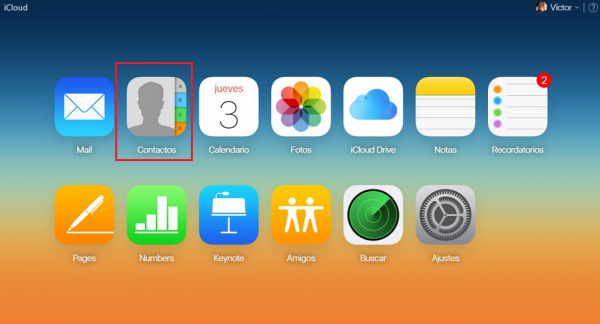
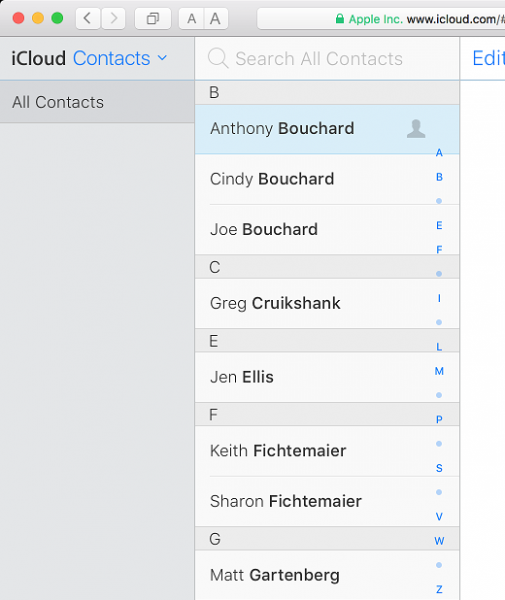
Now, press and hold the control button and select the Contacts that you want to delete.
Finally, press “Delete” key on your keyboard to delete the selected contacts.
Conclusion
These 4 solutions should help you delete contacts individually and in bulk and make your iPhone contacts more organized and easy to navigate.
In order to further enhance the productivity and management of your mobile device Contacts, we have created an app specifically for you. Covve is the simplest, smartest contacts app which aims to help you manage your business relationships and grow your network!
Discover more exciting features here or Download the app now!