How to set up the Zapier integration
Connect Covve Scan via Zapier, and get your scanned cards directly into any software.
Create automatic workflows from Covve Scan to third-party systems, and improve data entry efficiency. When you scan a business card in Covve Scan, the card details can appear in the connected software, without you having to type a single character!
Here’s how to set it up:
Step 1: Get you API key from Covve Scan
In order to enable the Zapier integration you must first get your API key from Covve Scan. This key will be requested from Zapier in order to connect to your Covve Scan account.
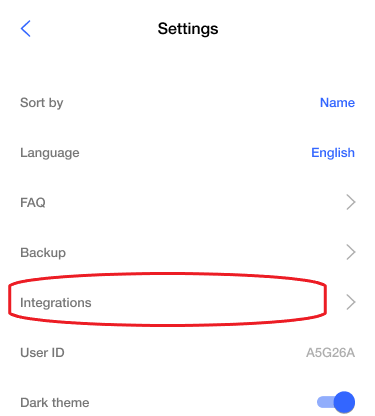
(a) Go to settings in Covve Scan and access ‘Integrations’:
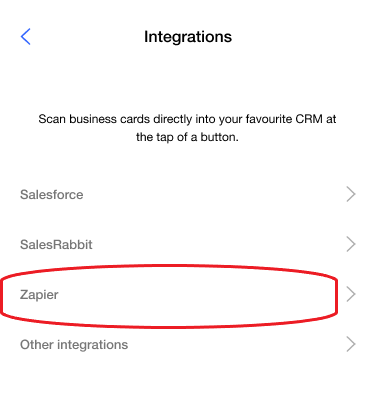
(b) Go to ‘Zapier’:
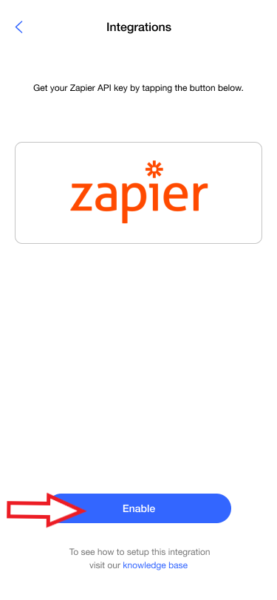
(c) Enable the ‘Zapier’ integration:
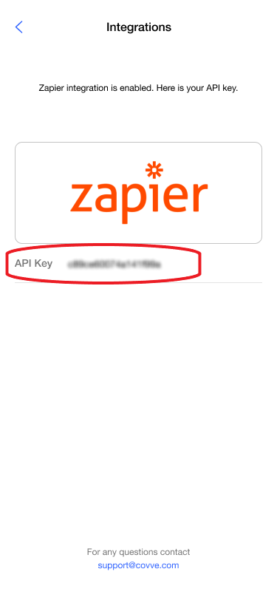
(d) This is your API Key for Zapier integration (long press to copy it):
Step 2: Use an existing Zap template or Create a Zap from scratch.
Read our blog to find out more: https://covve.com/how-to/how-to-create-a-zap-from-scratch
Now just turn on your zap and it’s ready to work. All scanned cards from now on will be also transferred automatically to Google contacts.