How to Turn Off Data Sharing With Third Party Apps in LinkedIn

Linkedin is great for keeping in touch with your professional network, but as with all social media models, it does rely on monitoring your interactions beyond its own pages. If you’re not too keen to share your Linkedin data with third party apps, especially after the Cambridge Analytica – Facebook saga, you can deactivate it easily from any desktop browser.
Login to your Linkedin account.
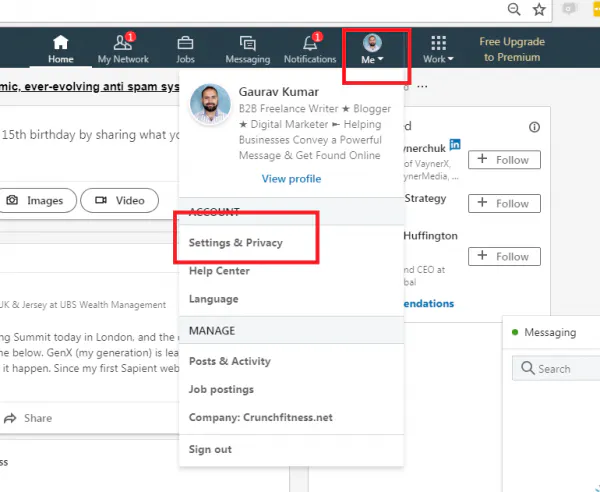
Click on your profile picture and select ‘settings and privacy’.
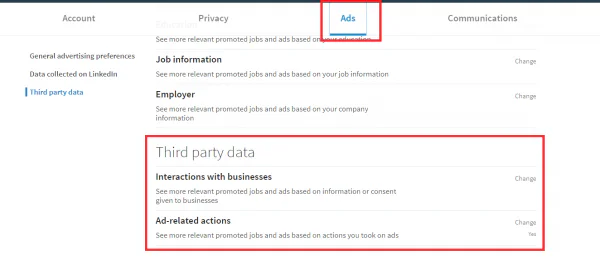
You will be on the main settings screen which has 4 tabs across the top. Select the ‘Ads’ tab.
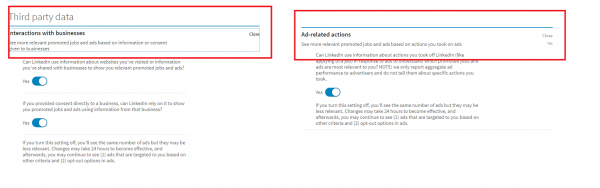
Scroll down to the ‘Third Party Data’ section. You’ll see ‘Interaction with businesses’ and ‘Ad related actions’. Select your desired setting.
Once you’re done, click close and the settings will be updated.
If you want to try a more private networking tool, check out Covve – find out more here.