
Outlook · Microsoft 365
Business card scanner for Outlook
Scan a business card and it’s in your Outlook contacts seconds later, on your laptop, in the browser and on your phone. Covve reads any card, badge or QR code in 60+ languages at 96% accuracy, and works for a whole Microsoft 365 team. Pricing is posted and the 14-day free trial starts today.


4.8 from 4,081 App Store ratings
ISO 27001 · GDPR · CyberVadis Platinum

How to scan business cards into Outlook contacts
Four steps, about two minutes, once. After that, every card is a tap away from Outlook.
01

Get Covve
Download Covve from the App Store or Google Play and sign in. Outlook is included from the Essential plan, and every plan starts with a 14-day free trial.
02

Connect Outlook
Open the menu, tap Integrations, choose Outlook365 and sign in with the Microsoft 365 account that holds your contacts.
03

Scan a card
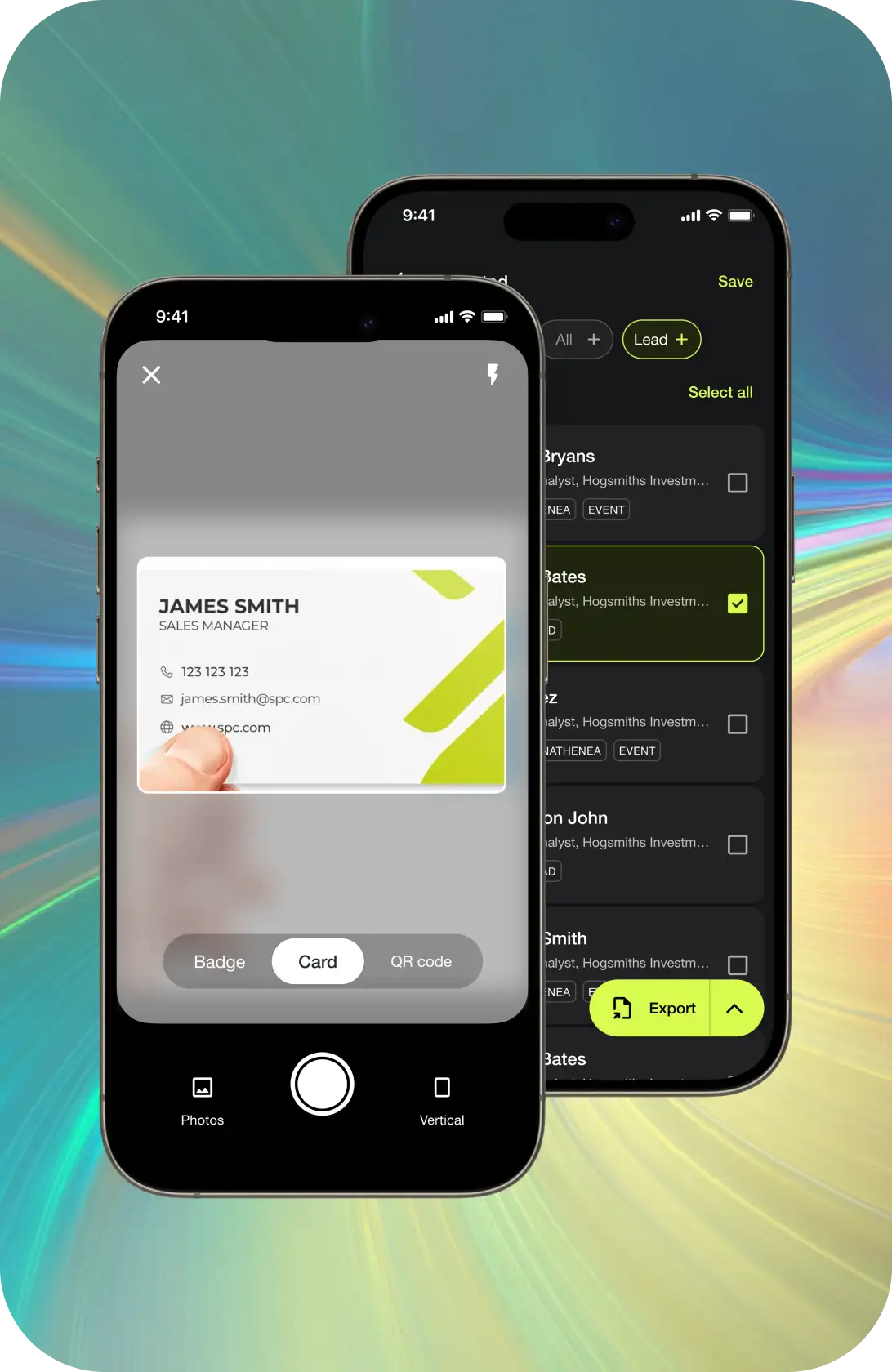
Point your camera at a business card or QR code. Covve reads it in 60+ languages and fills in each field. Check the details and add a note if you like.
04

Send to Outlook
Open the contact and tap Send to Outlook365. The contact appears in your Outlook contacts on desktop, web and mobile.
Two ways to get cards into Outlook
1. The Outlook365 integration
Best when you want each new contact in Outlook within seconds. Covve signs in to Microsoft 365 for you and creates the contact in your Outlook contacts, so it shows up in Outlook on your laptop, in the browser and on your phone. You decide which contacts to send.
2. An Outlook-ready CSV export
Best for a whole event at once, or for an Outlook account you cannot connect. In Covve, tap Select on your contact list, choose the cards, tap Export and pick Outlook (Online). You get a CSV laid out for Outlook’s contact import, shared from your phone by email or to cloud storage. Import it in Outlook and you are done.
Covve sends contacts to Outlook one way: changes you make later in Outlook do not flow back to Covve. Using a CRM instead? Covve also connects to Salesforce, HubSpot, Zoho, Pipedrive and Microsoft Dynamics 365. See all integrations.
Why Microsoft 365 teams pick Covve

In Outlook in seconds
Connect your Microsoft 365 account once, then send any scanned card to your Outlook contacts with one tap. No spreadsheet and no retyping.
Every field in its place
Paper cards at 96% accuracy in 60+ languages, any event badge, any QR code. Names, phone numbers and addresses land in the right Outlook fields.

Your whole team, covered
Everyone connects their own Microsoft 365 account. Pro adds the Team workspace and the web-based Covve Portal; Enterprise adds SSO and a guided rollout.
From the scan
to the follow-up
What changes when every card is in Outlook the same day.

Following up used to take me days. Now I scan, review quickly, and send personalized emails the same afternoon. It’s made me far more responsive.
Before Covve Scan, our team spent hours merging spreadsheets and correcting errors. Now leads are instantly usable across the entire organization.
We rolled it out to a team of 20 reps, and adoption was immediate. The simplicity and accuracy made it an easy win for everyone.
Pricing as clear as your inbox should be

Outlook on every plan
The Outlook integration comes with every paid Covve plan, alongside Google Contacts and Zapier. Every price is on the pricing page.
One seat or the whole team
Pay per seat, monthly or yearly, and add colleagues as your Microsoft 365 team grows.
Two weeks to try it
14 days of the full plan to prove it on your own cards. Cancel anytime; we remind you before it ends.
Outlook questions, answered
Anything else? Contact us and we will help you set it up.
Yes. Covve has a direct Outlook365 integration. You sign in with your Microsoft 365 account once, then send any scanned business card to your Outlook contacts with one tap. No spreadsheet and no retyping, so the contact is in Outlook before you reach the next stand.
Yes. Covve creates the contact in the Outlook contacts of the Microsoft 365 account you connect. Outlook then shows it wherever that account is signed in: desktop, web and mobile. You scan on your phone and the contact is ready on your laptop for the follow-up email.
Yes. Covve runs on iPhone and Android, and the Outlook integration works the same on both. Scan a card on your phone, send it to Outlook, and the contact is ready in Outlook on your laptop. There is nothing to install on your computer.
Yes. Every paid Covve plan exports contacts to Excel and CSV as well as to Outlook and Google Contacts. Select the cards, tap Export and choose the format. You keep one accurate list for Outlook and a spreadsheet for reporting or a mail merge.
Yes. Select the contacts in Covve, tap Export and choose Outlook (Online). Covve creates a CSV laid out for Outlook’s contact import and shares it from your phone. It is the quickest way to move a full event’s worth of cards into Outlook at once.
The Outlook integration is part of every paid Covve plan, starting with Essential, alongside unlimited scanning, Google Contacts and Zapier. Pro adds event badges and Custom Fields for teams. Start with a 14-day free trial to test it on your own cards before you pay.
Yes. Before your first event we help you connect Outlook and set up the team, during it real people answer at support@covve.com, and afterwards the web-based Covve Portal on Pro shows which events and reps brought in the leads. You see what worked and do better at the next one.
No. The Outlook integration works one way, from Covve to Outlook. Edits you make in Outlook stay in Outlook. If you update a contact in Covve, send it again so Outlook has the latest details.
With you before, during and after every event
After most events
A pile of cards and a guess.
No idea which show paid off, who brought the leads or what to change next time.
After events with Covve
Every lead in Outlook. Every result in view.
The web-based Covve Portal shows which events and reps brought the leads, and real people at support@covve.com help before and during each one.
Your next business card belongs in Outlook, not in a drawer.
Scan it, send it, follow up while they still remember you. Your 14-day free trial starts now.