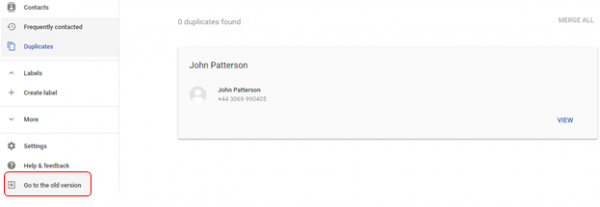
1. Go to the old version of Google Contacts, by clicking on Go to the old version on the left hand side bar.
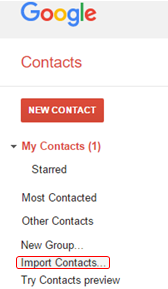
2. Now, you have switched to the old version of Google Contacts. On the left hand side bar, click on Import Contacts.
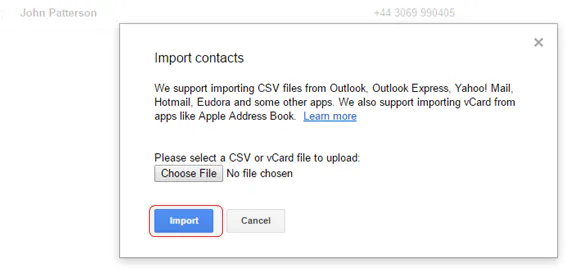
3. A dialog box will pop up, choose a .CSV file to upload.
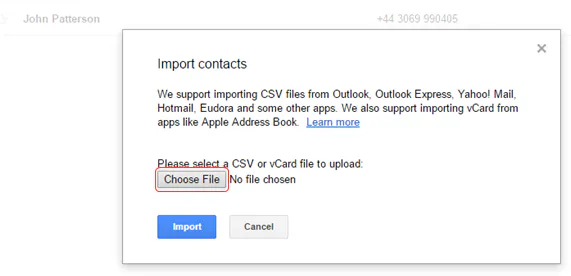
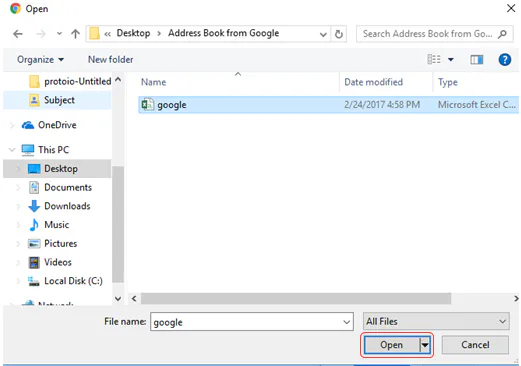
4. Head over to the .csv file that you have saved on your personal computer and click on Open.
5. Finally, click on Import to import the .csv file.
What happens to the imported contacts?
Google will import them by default into a group called “Imported [date]” under “My Contacts”

If the import has duplicates, you can merge them by clicking on Find & Merge duplicates on the red top bar .
Salesforce, HubSpot and more
$6 /user/monthSalesforce, HubSpot and more
$60 /user/yearTry Covve free for 14 days, cancel anytime.
Try Covve free for 14 days, cancel anytime.
Continuing as
Question 1/3
First things first, where can we reach you? Takes under a minute.
We’ll email you at . Is that right?
Question 2/3
Question 3/3
We’ll be in touch shortly to get you set up.
Continuing as
Question 1/4
First things first, where can we reach you? Takes under a minute.
We’ll email you at . Is that right?
Question 2/4
Question 3/4
Question 4/4
Our sales team will reach out shortly — keep an eye on your inbox.