Automatically keep a record of new Office 365 Contacts in a Google Drive spreadsheet
Automation is a method or technique, of operating or controlling a process, which eliminates the need for human intervention in order to complete a task. Luckily enough, we can apply this same idea to contact management to easily store and find contact information, such as names, telephone numbers and job titles.
If every time you added a new contact, all the contacts had been sorted into a spreadsheet, you would never worry again about backing up your contacts and this could save you time because you wouldn’t need to do it yourself. At the same time, saving your contacts into an Excel spreadsheet makes processes like filtering or creating group mails a lot more easier. This can come in handy in a lot of cases such as e-mail marketing campaigns or even creating a wedding list!
In this how to article, we are going to create a process chain, to automatically keep a record of new Office 365 Contacts to a Google Drive spreadsheet, using IFTTT (If This Then That).
IFFT, is a free web-based service that people use to create chains of simple conditional statements, called applets. An applet is enabled by changes (triggers) that occur within other web services such as Google Contacts, iOS Contacts, Office 365 Contacts, Evernote and many more.
1) Go to ifttt.com and sign up for an account.
2) Click on My Applets

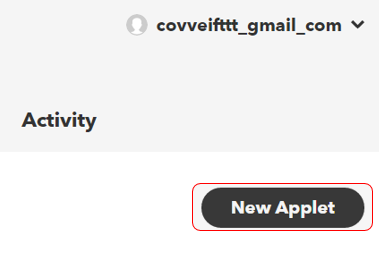
3) Click on New Applet
4) Click on + this.

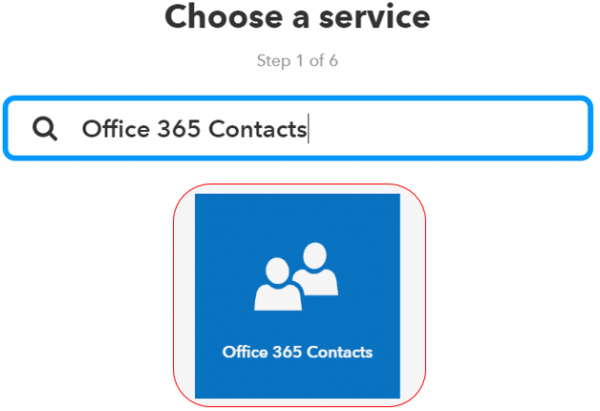
5) In the search box, search for “Office 365 Contacts” , and click on Office 365 Contacts.
6) Choose New contact added trigger.
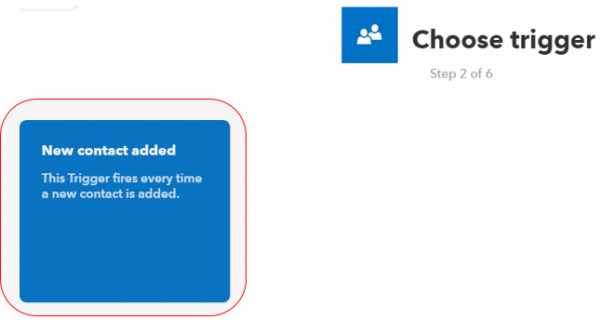
7) Click on + that

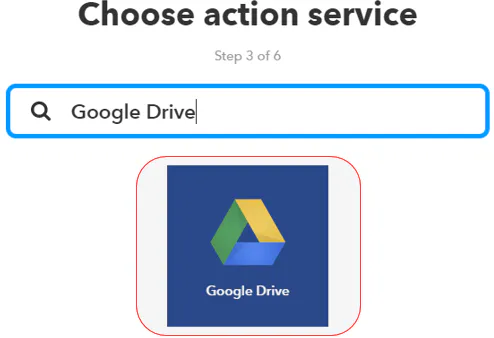
8) In the search box, search for “Google Drive” , and click on Google Drive.
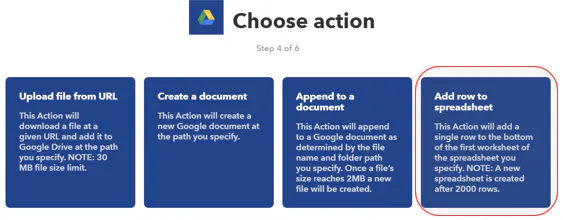
9) Choose Add row to spreadsheet trigger.
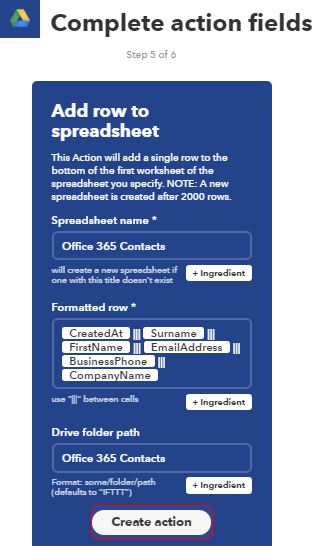
10) At this point you can edit your spreadsheet’s name, format and location, by clicking on + Ingredient. We will leave it as default. Click on Create Action.
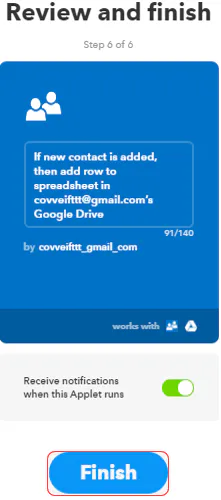
11) Finally, review your applet and click on Finish.
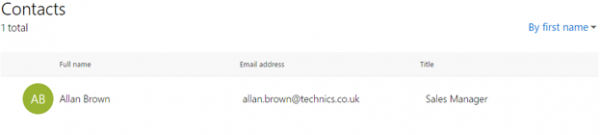
12) Now, lets test out if our process chain works. Go to your Office 365 Contacts account and Add a new contact.
13) Go to your Google Drive account and open the spreadsheet located at the path you chose when you created the applet. In our case it should be in Office 365 Contacts folder.
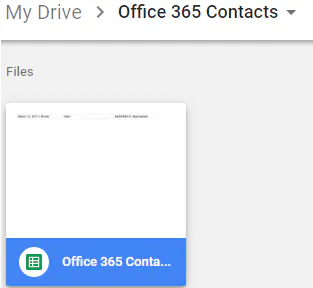
14) You can see that the contact details have been automatically imported in the spreadsheet.